Git in Depth
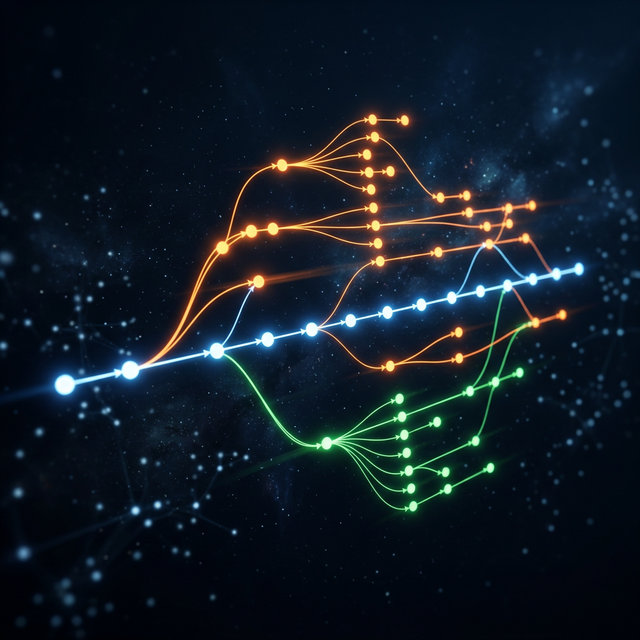
Understanding Version Control
From the Inside Out
The Problem: Life Without Version Control
Have you ever had a folder that looks like this?
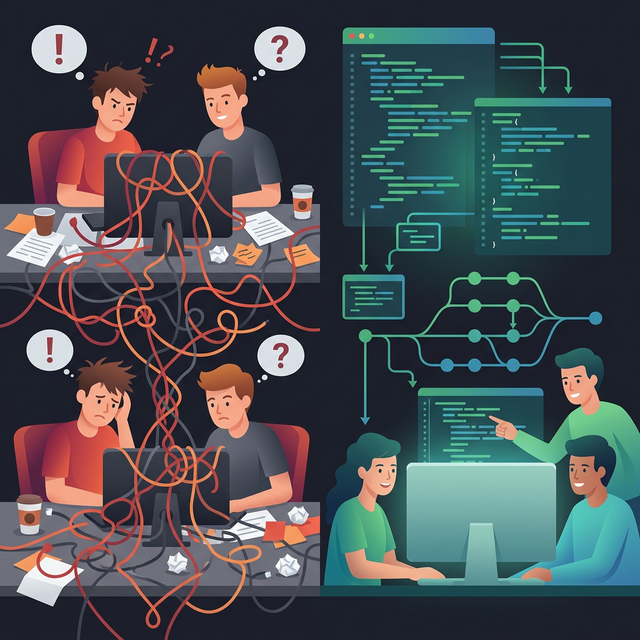
💡 Real-world analogy: Think of Google Docs revision history — you can see every edit, who made it, and restore any version. Git does this for your entire project.
The Evolution: Centralized to Distributed
Version control evolved in 3 generations. Git is the third generation — fully distributed.
Why Git Won
Speed — Most operations are local
Integrity — Every file checksummed (SHA-1)
Branching — Cheap, instant branches
Offline — Commit without internet
Distributed — No single point of failure
Adoption — 95%+ of dev teams worldwide
What Makes Git Different?
Git doesn't store file changes — it stores snapshots. Every commit is a photo of your entire project.
💡 Think of it this way: Snapshots = Photo Album (each page is a complete photo) vs Deltas = Instruction List ("move eyes left, change hair color..."). Which would you rather use to restore a photo?
Other VCS: Store Differences (Deltas)
File A:
v1
+
Δ2
+
Δ3
+
Δ4
⚠️ To rebuild v4, need: v1 + Δ2 + Δ3 + Δ4 — Slow for large history!
Git: Store Snapshots
Commit 1
A v1 | B v1
Commit 2
A v2 | B same
Commit 3
A v3 | B v2
✅ Each commit = complete snapshot. Unchanged files = pointer (fast!)
This is why checkout is instant — Git doesn't need to reconstruct from deltas
The Three Areas of Git
Every Git command moves data between these three areas — this is the most important mental model to understand.
🛒 Real-world analogy: Online Shopping — Browse products (Working Dir) → Add to cart (Staging) → Place order (Commit). You choose exactly what goes in each order!
📁 Working Directory
Your actual project files
index.ts
modified
app.css
unchanged
utils.ts
new file
What you see in your editor
git add
→
git restore
←
📋 Staging Area
Preview of next commit
index.ts
staged
utils.ts
staged
Also called "Index" — stored in .git/index
git commit
→
git reset
←
🗄️ Repository (.git)
Permanent commit history
commit c4d82a
"add login page"
commit a1f3c2
"initial commit"
Immutable & compressed
Key Insight: You choose exactly what goes into each commit — stage only relevant changes, keep commits clean and focused.
git diff — working vs staging
git diff --staged — staging vs last commit
Your First Git Workflow
Let's put the three areas into practice — like following a recipe step by step.
🍳 Like cooking: Gather ingredients (git init) → Prep on cutting board (git add) → Cook and serve (git commit) → Check the taste (git status)
1
Initialize
$ git init
Creates .git/ folder — your project is now a Git repo
2
Stage Changes
$ git add index.ts utils.ts
Moves files from Working Dir to Staging Area
3
Commit
$ git commit -m "initial commit"
Creates a permanent snapshot in .git/objects
4
Check Status
$ git status
See what's modified, staged, or untracked
$ git log --oneline
c4d82a3 (HEAD -> main) initial commit
$ git status
On branch main — nothing to commit, working tree clean
Essential Git Commands
Here's your cheat sheet — organized by which area each command operates on.
📁 Working
git status
git diff
git stash
git restore <file>
git clean -fd
📋 Staging
git add <file>
git add -p
git diff --staged
git reset HEAD <f>
git restore --staged
💾 Committing
git commit -m "msg"
git commit --amend
git log --oneline
git show <commit>
git log --graph
🌐 Remote Operations
git clone <url>Copy remote repo to local
git fetch originDownload changes without merging
git pull origin mainFetch + merge in one step
git push origin mainUpload local commits to remote
git remote -vList configured remotes
Under the Hood: Git's Object Model
Now that you know how to use Git, let's peek under the hood to understand how it stores data.
📚 Think of a library: Blob = a book's content. Tree = a shelf listing which books are where. Commit = the library catalog card. Tag = a bookmark.
📄
Blob
File Content — raw data of a single file
📂
Tree
Directory — lists files & subdirs with their hashes
📸
Commit
Snapshot — tree + parent + author + message
🏷️
Tag
Label — named pointer to a specific commit
How they connect
Blob
inside →
Tree
linked by →
Commit
referred by →
Tag
💡 Content-Addressable Storage: Every object gets a unique SHA-1 hash based on its content. Same content = same hash = never stored twice = deduplication!
How Commits Are Built
Every commit forms a chain — like links in a blockchain. Each one knows its parent.
⛓️ Like a blockchain: Each commit references its parent via SHA-1 hash. Tamper with one block, and the whole chain breaks. That's data integrity!
📸 commit c4d82a
tree: b7e23d
parent: a1f3c2
author: john
msg: "add login"
📂 tree b7e23d
blob a5c1 README.md
blob d3f2 index.ts
tree f2a1 src/
📄 blob a5c1 — README.md
📄 blob d3f2 — index.ts
📂 tree f2a1 — src/
Commits Form a Chain — The Commit Graph (DAG)
Each commit remembers its parent — you can traverse the entire history
c1
→
c2
→
c3
→
c4
main
HEAD
initial
add auth
fix bug
add login
Git in the Bigger Picture
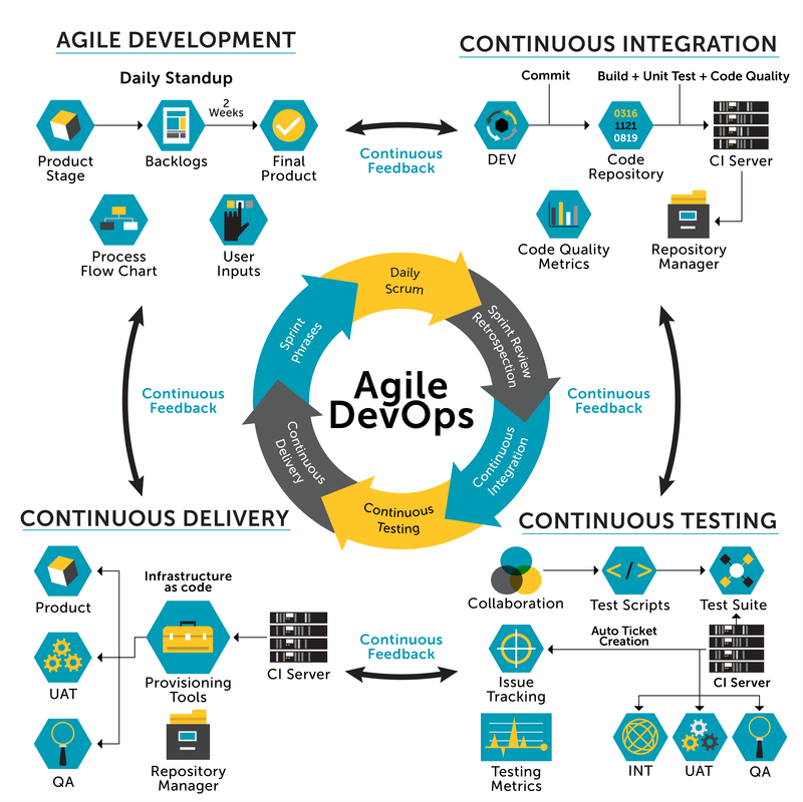
Git is not just a tool — it's the backbone of modern software delivery.
🏭 Think of an assembly line: Developer writes code (Plan) → Git tracks it (Code) → CI builds and tests (Build) → CD deploys (Release). Git is the conveyor belt!
Plan (Agile)
Sprints & Issues
Code (Git)
Branch & Commit
Build (CI)
Test & Verify
Deploy (CD)
Release & Monitor
🚀 Next up: Branching — the feature that makes Git truly powerful for team collaboration.
Section 2 of 4
Branching & Merging
The feature that makes Git truly powerful for team collaboration.
Branching & HEAD
Branches are lightweight pointers to a commit. HEAD tells Git which branch you're on.
🌌 Parallel universe analogy: A branch is like creating a parallel universe. You can work on "what if?" without affecting the main timeline. Then merge back!
Branches are just pointers
c1
→
c2
→
c3
main
↘
c4
→
c5
feature
HEAD
💡 A branch is just a 41-byte file containing a commit SHA. Creating a branch = creating a tiny pointer. That's why it's instant!
Branch Operations
Create & Switch
git branch featureCreate branch
git switch featureSwitch to it
git switch -c featureCreate + switch
Older: git checkout -b feature
Common naming:
feature/login, bugfix/header, hotfix/crash, release/v2.0
Delete & List
git branch -d featureSafe delete
git branch -D featureForce delete
git branch -aList all
git branch -vWith last commit
Tips:
-d only works if merged. -D forces. Always delete after merging!
Merge: Combining Branches
When a feature is complete, you merge it back — Git creates a new commit with two parents.
🛣️ Like merging highways: Two roads (branches) join back into one highway (main). If they overlap, a traffic controller (you) resolves which car goes first.
Before merge:
c2
→
c3
main
↘
c4
feature
After: git switch main && git merge feature
c2
→
c3
→
M
main
⚡ Fast-Forward Merge
If main hasn't moved, Git just moves the pointer forward — no merge commit needed!
git merge --no-ff feature (force merge commit even if fast-forward possible)
Rebase: Rewriting History
Rebase replays your commits on top of another branch — creating a clean, linear history.
Before:
c1
→
c2
→
c3
main
↘
c4
→
c5
After rebase:
c1
→
c2
→
c3
→
c4'
→
c5'
No merge commit — linear!
⚠️ Golden Rule of Rebase
Never rebase commits that have been pushed to a shared branch!
Rebase rewrites commit hashes. If others based work on old hashes, you'll create chaos.
Safe: rebase your local feature branch. Unsafe: rebase main or shared branches.
Merge vs Rebase
Both integrate changes — choose based on your team's workflow.
git merge
+ Preserves complete history
+ Non-destructive (safe)
+ Shows when branches merged
- Creates merge commits
- History can get messy
Best for:
Shared branches, public history, when you want to see merge points
git rebase
+ Clean, linear history
+ Easier to read git log
+ No extra merge commits
- Rewrites commit history
- Dangerous on shared branches
Best for:
Local feature branches, keeping branches up to date
Resolving Merge Conflicts
Conflicts happen when Git can't automatically merge because both branches changed the same lines.
Anatomy of a Conflict
<<<<<<< HEAD
color: blue;
=======
color: red;
>>>>>>> feature
Your changes (HEAD) vs incoming (feature)
Resolution Steps:
1. Open the conflicted file
2. Choose which code to keep
3. Remove conflict markers
4. git add resolved-file.ts
5. git commit
Helpful Commands
git diff --check Find markers
git merge --abort Cancel merge
git mergetool Visual tool
Stashing & Cherry-Pick
Two powerful tools for managing work across branches.
🌸 Real-world analogy: Stash = put your work in a drawer to deal with later. Cherry-pick = transplant one specific flower from another garden into yours.
git stash
Save uncommitted work temporarily
git stashSave changes
git stash popRestore + delete stash
git stash applyRestore, keep stash
git stash listShow all stashes
When to use:
Need to switch branches mid-work, quick fix on another branch
git cherry-pick
Copy a specific commit to current branch
git cherry-pick abc123
Creates a new commit with same changes
git cherry-pick a..b
Pick a range of commits
When to use:
Need one specific fix from another branch, backporting fixes
Undoing Changes
Git provides multiple ways to undo — like a time machine with different power levels.
⏰ Time machine levels: restore = eraser (undo writing). reset = rewind (go back locally). revert = publish a correction (safe for shared history)
git restore
Undo working dir changes
git restore file.ts
Discard local edits
git restore --staged f
Unstage a file
✅ Safe: only affects working dir / staging
git reset
Move branch pointer back
--soft HEAD~1
Keep changes staged
--mixed HEAD~1
Keep changes unstaged
--hard HEAD~1
Delete everything!
⚠️ Dangerous on shared branches!
git revert
Create an undo commit
git revert abc123
New commit that undoes the specified commit
git revert HEAD
Undo last commit
✅ Safe for shared branches! Preserves history.
Remote Collaboration
Git is distributed — you sync with remote repositories using push, pull, and fetch.
💻 Your Local Repo
Working Dir + Staging + .git
origin/main (tracking branch)
main (your local branch)
git push
→
←
git pull
☁️ Remote (GitHub)
origin = default remote name
main branch
feature branches
git push
Upload local commits to remote
git push -u origin feature
git pull
Fetch + merge in one command
git pull --rebase
git fetch
Download only — don't merge
git fetch origin
Section 3 of 4
Team Collaboration
From solo developer to team player — how Git enables modern workflows.
Pull Requests & Code Review
The standard workflow for team collaboration with Git.
🌿
1. Branch
Create feature branch
💾
2. Commit
Make changes & push
📝
3. Open PR
Request review
✅
4. Merge
After approval
Code Review Benefits:
✓ Catch bugs before production
✓ Knowledge sharing across team
✓ Enforce coding standards
✓ Documentation of decisions
✓ Training for junior devs
PR Best Practices:
• Keep PRs small and focused
• Write descriptive PR titles
• Include screenshots for UI changes
• Link to related issues
• Respond to feedback promptly
CI/CD with Git
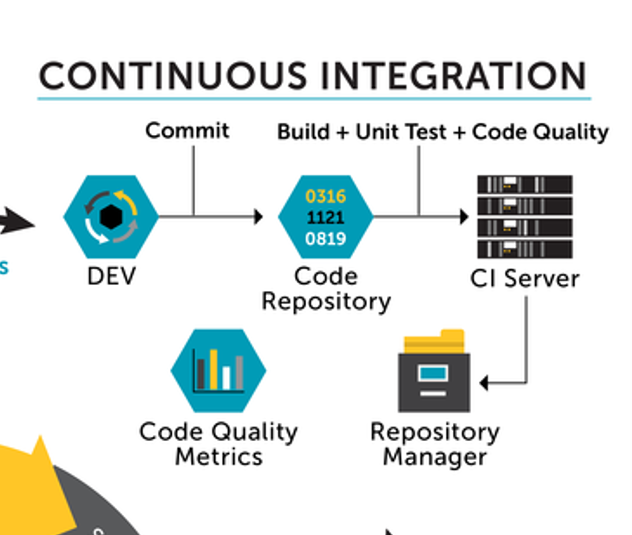
The CI Flow:
DEV pushes commit → CI Server pulls & builds → Unit tests & code quality run → Artifacts stored
Fast feedback. Catches bugs early. Automated quality gates.
GitLab CI/CD Pipeline
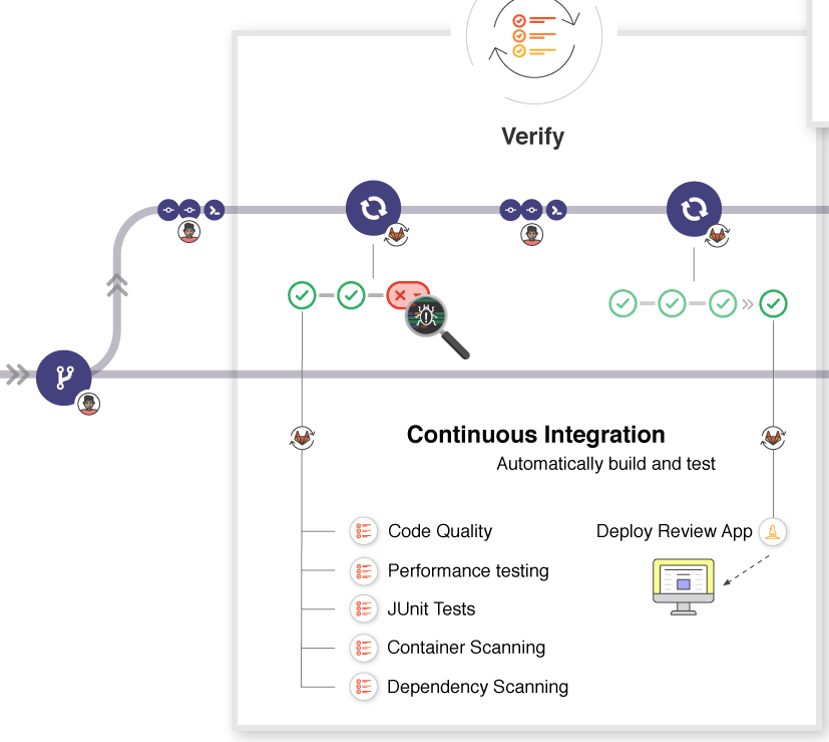
🔑 Key Concepts: Verify stage (tests, scans) → Review Apps (preview per branch) → Merge only when green
Section 4 of 4
Strategy & Best Practices
Tags, branching models, .gitignore, and commit messages — the practices that make teams efficient.
Tagging Releases
Tags mark specific commits as release points — permanent bookmarks in history.
🏷️ Annotated Tags
git tag -a v1.0.0 -m "Release"
Full metadata (author, date, message)
git tag -a v1.1.0 abc123 -m "Patch"
Tag a specific commit
git push origin v1.0.0
Tags are NOT pushed by default!
git push origin --tags
Push all tags at once
📐 Semantic Versioning
v MAJOR.MINOR.PATCH
MAJOR = breaking changes
MINOR = new features (backward compatible)
PATCH = bug fixes
Examples:
v1.0.0 — first stable release
v2.0.0 — breaking API change
Branching Models
Two popular strategies — choose based on team size and release cadence.
GitHub Flow
Simple, continuous deployment
1. Create feature branch from main
2. Make commits
3. Open Pull Request
4. Code review
5. Merge to main & deploy
Best for:
SaaS, web apps, small teams, continuous deployment
Git Flow
Structured release management
main — production releases
develop — integration branch
feature/* — new features
release/* — release prep
hotfix/* — emergency fixes
Best for:
Mobile apps, versioned software, scheduled releases
.gitignore Best Practices
Keep your repository clean — only track what matters.
Common .gitignore
# Dependencies
node_modules/
vendor/
# Build output
dist/
build/
.next/
# Environment
.env
.env.local
*.log
Tips & Tricks
gitignore.io
Generate for any language/framework
git rm --cached file
Stop tracking without deleting
!important.env
Negate a pattern (force include)
Never commit:
❌ Passwords, API keys, secrets
❌ Large binary files (use Git LFS)
❌ Auto-generated files
Writing Good Commit Messages
❌ Bad Messages
"fix"
"updated stuff"
"WIP"
"asdfghj"
✅ Good Messages
"fix: resolve auth token expiry bug"
"feat: add dark mode toggle"
"docs: update API reference"
"refactor: extract auth module"
Conventional Commits Format
type(scope): description
feat: feature
fix: bug fix
docs: documentation
refactor: code change
test: tests
chore: tooling
ci: CI config
Common Mistakes & Gotchas
Avoid these traps that catch even experienced developers.
⚠️
git push --force
Overwrites remote history. Use --force-with-lease instead!
⚠️
git reset --hard
Destroys uncommitted work. Stash or commit first!
⚠️
Rebase shared branch
Rewrites team's history. Only rebase local branches!
❌ Force pushing to main — Overwrites teammates' work
❌ Committing .env / secrets — Once pushed, they're in history forever
❌ Giant commits — "Updated everything" makes debugging impossible
Daily Gotchas
❌ Forgetting to pull before starting work → merge conflicts later
❌ Working on main instead of a feature branch → messy history
❌ Ignoring merge conflicts — resolving them wrong introduces bugs
✅ Rescue tool:
git reflog shows every HEAD movement — your safety net✅ Fix last commit:
git commit --amend to fix message or add forgotten files
💡 "Git never forgets" — even when you think you've lost something, git reflog can save you.
Summary & Next Steps
🏗️
Foundations
VCS history, snapshots, three areas, object model
🌿
Branching
Branches, merge, rebase, conflicts, cherry-pick
🤝
Collaboration
PRs, CI/CD, remotes, best practices
🎯 Practice Makes Perfect
✓ Create a test repo and experiment
✓ Contribute to open source
✓ Use branches for everything
✓ Read git log of real projects
📚 Resources
Pro Git Book (free): git-scm.com/book
Learn Git Branching: learngitbranching.js.org
GitHub Skills: skills.github.com
Atlassian Git Tutorials
"Any fool can write code that a computer can understand. Good programmers write code that humans can understand." — Martin Fowler