UI/UX Design • AI Integration
Stitch
AI for UI Exploration
AI for UI Exploration
A practical introduction to using Stitch AI for UI ideation, better prompts, PRD-based generation, and fast design exploration inside a modern product workflow.
Prompting
PRD Thinking
Rapid Exploration
Hook: Imagine This…
What if you could design a UI…
just by describing it?
💬
Description
→
🧠
AI
→
🎨
UI Draft
→
📱
Prototype
"What you imagine could instantly become a visual."
What Will You Learn Today?
🔍
What Stitch Is
Understand what the tool does, where it fits, and what it is not meant to replace.
✍️
How To Prompt Better
Learn how to move from vague requests to structured prompts with clearer outcomes.
🧪
How To Review Output
Evaluate generated UI with UX and UI criteria instead of accepting the first result.
What Is Stitch?
Stitch AI helps teams turn product descriptions into interface directions, layouts, and screens faster than starting from a blank canvas.
In simple terms
Stitch takes a written product intent — such as a feature brief or a workflow idea — and generates interface concepts you can inspect, compare, and refine.
What it is not
It is not a guaranteed production-ready design system output, and it does not automatically understand your product constraints unless you tell it clearly.
Why Stitch Exists — And Why It Matters
🪟
Blank Canvas Is Hard
Starting from nothing often slows teams down even when the problem is already understood.
💬
Ideas Are Hard To Communicate
Teams often understand a feature verbally but struggle to turn it into a visible screen direction.
⏱️
Ideation Takes Time
Stitch reduces the delay between describing a concept and seeing a draft to discuss.
The real value is not only speed. It is the ability to explore more possibilities while keeping design discussions grounded in product intent.
When To Use Stitch
✅ Good use cases
- Early-stage concept exploration
- Generating alternative layouts for the same feature
- Translating a feature brief into tangible UI directions
- Creating discussion material for design reviews
⚠️ Use with caution
- High-fidelity design system work that needs precision
- Accessibility-sensitive flows that must be reviewed deeply
- Complex enterprise interactions with many hidden states
- Moments where teams want final output without critique
Limitations You Should Remember
What Stitch cannot do for you
- Replace UX thinking and product framing
- Automatically resolve complex business rules
- Guarantee production-ready designs
- Fully understand your product without context
Mindset
AI can generate UI drafts, but it cannot fully understand your product goals, user frustrations, or success metrics unless you define them clearly.
Where Stitch Fits In The Design Process
Requirements
→
Prompt
→
Generate
→
Review
→
Iterate
→
Prototype
Stitch is strongest in the early-to-mid design stage, especially when teams want to move from requirement clarity into visual discussion quickly.
How To Access and Start Using Stitch
1️⃣
Prepare The Brief
Write a concise feature or product goal before opening the tool.
2️⃣
Open Stitch
Start a new exploration session and define the product context.
3️⃣
Prompt Intentionally
Describe users, goals, flows, and constraints instead of asking for a generic screen.
Section 1 of 2
Prompting Fundamentals
The quality of Stitch output usually reflects the clarity of the product thinking behind the prompt.
How Prompting Works in Stitch
Stitch responds to product context, workflow intent, and interface direction. Vague prompts produce vague screens.
👤
User Context
Who is the screen for, and what are they trying to accomplish?
🧭
Task Flow
What key actions, states, or decisions should the screen support?
📏
Constraints
What tone, structure, platform, or design limitations must the output respect?
The Core Workflow
Prompt
→
Generate
→
Review
→
Iterate
🔁
You guide the AI with intent, the AI returns a draft, and your job is to review and refine. The first result is almost never the final result.
Weak Prompt vs Strong Prompt
❌ Weak prompt
"Create a dashboard for an app."
The tool does not know the user, goal, hierarchy, device, or priority actions.
✅ Stronger prompt
"Create a mobile dashboard for first-time warehouse supervisors to track pending shipments, urgent delays, and the next recommended action in under 10 seconds."
Now the output has a role, urgency, device context, and information hierarchy.
If the prompt can be reused for ten different products, it is probably too generic.
A Practical Prompt Anatomy
User
→
Goal
→
Task
→
Constraints
→
Visual Direction
A useful Stitch prompt usually includes:
User: who this interface serves
Goal: what outcome they need
Task flow: what they do in sequence
Constraints: platform, data, tone, interaction limits
Visual direction: the level of simplicity, hierarchy, or mood you want
User: who this interface serves
Goal: what outcome they need
Task flow: what they do in sequence
Constraints: platform, data, tone, interaction limits
Visual direction: the level of simplicity, hierarchy, or mood you want
What Is PRD?
PRD in simple terms
PRD stands for Product Requirements Document. It explains what to build, who it is for, and what problem it should solve.
Why it matters for Stitch
PRD gives the clarity that AI needs. Better product definition leads to better prompts, better screens, and easier iteration.
Prompting With a PRD Mindset
A PRD-style prompt works better because it gives Stitch structured product intent instead of decorative instructions.
📌
Problem
What user problem or business need is this screen solving?
🎯
Success
What should the user be able to do better after using it?
🧱
Requirements
What elements, states, or priorities must appear in the interface?
Good Prompt Structure + QR Template
For classroom use, keep one prompt framework that can be reused quickly while practicing with Stitch.
Prompt checklist
Product context: what product or workflow is being designed
Target users: who uses this screen
Screen goal: what must be completed
Components: what must appear on screen
Visual style: clean, compact, dashboard-like, supportive, etc.
Constraints: platform, accessibility, density, and brand rules
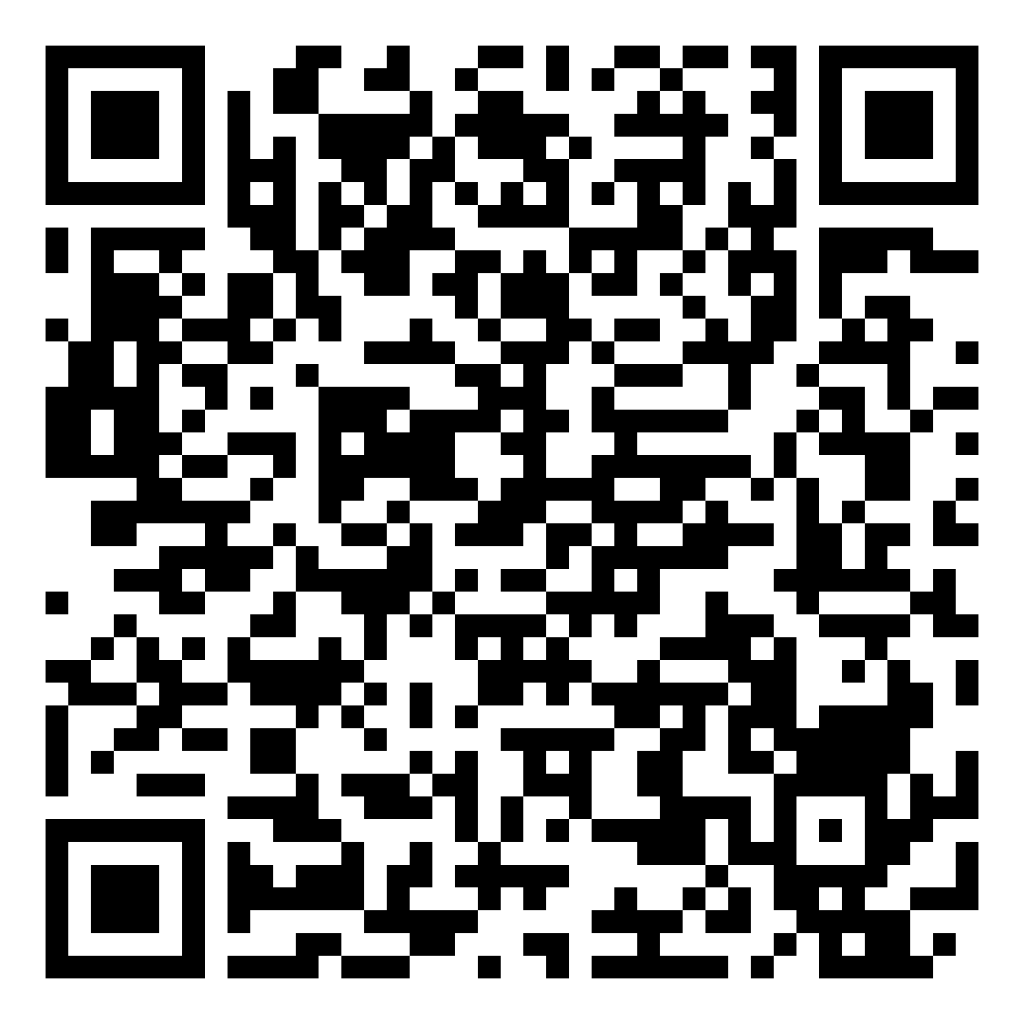
Scan to open template
Key Stitch Features To Pay Attention To
🖼️
Screen Generation
Rapidly create first-pass layouts from written intent.
🔁
Iteration
Refine direction by tightening prompts instead of restarting from zero.
🧪
Variation
Explore different structures for the same problem and compare tradeoffs.
📝
Specification Feedback
Use output quality as a signal for how clear the brief really is.
Section 2 of 2
Practice and Review
The most useful Stitch workflow is simple: frame the problem, generate options, critique them, then refine.
A Simple Hands-On Practice Flow
Use this sequence when learning Stitch for the first time.
1️⃣
Pick One Feature
Choose a narrow UI problem such as onboarding, dashboard, or checkout summary.
2️⃣
Write A Mini Brief
Define user, goal, key action, and the top constraints in 4 to 6 lines.
3️⃣
Generate First Output
Prompt Stitch and inspect hierarchy, structure, and missing logic.
4️⃣
Refine Intentionally
Adjust the prompt based on what is unclear, weak, or off-priority.
What To Review In The Output
📚
Information Hierarchy
Is the most important action visually first and easy to find?
🧭
Flow Logic
Does the screen help the user complete the real task without friction?
👀
Clarity
Are labels, grouping, and next steps understandable without explanation?
♿
UX Risk
Would this design still need accessibility and state reviews before adoption?
Evaluation Checklist
UX check
- Does the user understand what to do first?
- Is the task flow obvious without extra explanation?
- Are the most important actions clearly prioritized?
- Does the screen reduce friction or accidentally add more?
UI check
- Is visual hierarchy clear at a glance?
- Is spacing balanced and readable?
- Are labels concise and understandable?
- Would the design still work under accessibility review?
Best Practices
✅ Do
- Start with a clear product brief, not a styling request
- Ask for one specific workflow at a time
- Compare multiple directions before choosing one
- Use output to improve the brief as much as the screen
❌ Avoid
- Treating the first output as the correct answer
- Overloading one prompt with many unrelated features
- Judging success only by visual polish
- Skipping designer review because the layout looks convincing
Common Beginner Mistakes
❌
Prompting Too Broadly
Beginners often ask for an entire app instead of one focused workflow.
❌
No User Definition
Without a user and context, the output becomes generic and hard to evaluate.
❌
Skipping Critique
AI output still needs UX review for states, edge cases, and usability.
❌
Confusing Speed With Quality
Fast generation does not remove the need for design judgment.
Key Mindset
💡 Think of Stitch as a partner
It is not a replacement for designers, not a fully automatic solution, and not a shortcut around product thinking.
📌 Practical rule
You guide the AI, not the other way around. The better your thinking, the better the draft you get back.
Final Takeaways
🧠
Think before prompting
Stitch becomes more useful when the team already understands the user problem, task flow, and intended outcome.
🔍
Use it for exploration
Its strongest use is generating and comparing directions early, not replacing critical design review.
📝
PRD framing improves results
Prompts grounded in user, goal, and requirements usually outperform styling-first prompts.
🛠️
Refine deliberately
Good output usually comes from multiple iterations, tighter prompts, and clearer evaluation criteria.
🧵
Use Stitch As A Design Accelerator
The strongest teams use AI to explore faster, think more clearly, and critique more rigorously — not to skip product reasoning.
📌 Clarify The Brief
✨ Generate Options
🔎 Review Critically
Stitch AI works best when product thinking leads and AI follows.